


Calculation of a single-layer inductor in ANSYS HFSS
 There are many professional commercial programs that are members of the “electromagnetic simulators” class. They allow you to calculate various types of inductance on a wide variety of cores. With their help, you can calculate electromagnetic relays, electric motors, traction mechanisms, sound speaker coils, induction heating devices, and much more. Therefore, we remind you once again that the Coil64 program is designed for amateur radio calculations of radio frequency coils, and not for all the mentioned above.
Currently, the electromagnetic simulator ANSYS HFSS has become popular among professionals. It is a part of the ANSYS ELECTRONICS DESKTOP package and is used to calculate antennas. The Q3D Extractor, Maxwell 3D programs included in this package, as well as their 2D versions, allow you to calculate the inductance of multilayer and single-layer coils on any cores. But since they are based on solvers using a quasi-static field model, they cannot calculate the self-resonance frequency of a single-layer coil, as well as the correct dependence of its Q-factor on frequency. However, ANSYS HFSS can do this. Yes, it can calculate not only waveguides and other microwave devices, but also the parameters of a lumped inductance coil.
As an example of calculation, let's get a high-Q LC-circuit coil for the 14 MHz band, which we calculated using Coil64 in this article.
Let's open ANSYS ELECTRONICS DESKTOP, a new project “Project1” will open automatically, inside it, we create a new design, “HFSSDesign1”. This can be done using the menu or the quick access panel. Before creating a 3D model of the coil, we recommend setting the calculation variables. This allows you to not rummage through the entire 3D model later, but only change the desired variable when recalculating the coil. Since a project can contain several designs, variables can be set both globally for the entire project and locally for each design. Let's add the necessary local variables by opening the window using the menu “HFSS → Design properties…” We will need the original dimensions of the coil and the number of turns. For convenience, let's also add two calculated variables, the length, and the diameter of the helix winding lk and Dk:

Next, we need to create a 3D model of our coil. This can be done in different ways, but the simplest is to use a pre-installed library of primitives. Open the menu “Draw → User defined primitive → SegmentedHelix → PolygonHelix”, a dialog box with the parameters of the helix will appear, where we substitute our design variables:
 |
 |
| Menu | Variables window |
The “PolygonSegments” parameter defines the cross-sectional shape of the wire. If zero, it will be a round wire, if 4 — a square wire. Each turn is divided into segments. The "SegmentsPerTurn" parameter is responsible for this. You can set 4 or 6, then the winding will be square or hexagonal, or zero for a circular helix. The "RightHandled" parameter determines in which direction the spiral will twist, for us, it is not important. The "RadiusChange" parameter determines the change in the winding radius from turn to turn. In the case of a cylindrical coil, it is zero. By combining the "RadiusChange" and "Pitch" parameters, you can create a model of not only a cylindrical helix, but also a conical and flat spiral coil.
Please note that if you set the "PolygonSegments" and "SegmentsPerTurn" parameters to zero, this will require increased computer resources. The solution may take several hours, and on machines with less than 16 GB of RAM, the program refuses to continue the calculation after a while. To avoid this, it is necessary to reduce segmentation. For example, set PolygonSegments = 9, SegmentsPerTurn = 36. This reduces the accuracy of the calculation, especially the Q-factor, but not much. Having defined the parameters of our helix, we click “OK” and the program draws our coil. In the model tree, it is displayed under the name “PolygonHelix1”. We can rename it to “Coil” and set the material “copper” instead of the default “vacuum” in the pop-up menu “Assign material → copper”.
The 3D model of the coil has been created. To calculate it, you need to set the initial and boundary conditions, “Excitations” and “Boundaries”. To do this, you will have to add a few more figures. The “Lumped port” will be used as the excitation port. First, let's add two short square-section terminals to the coil. This can also be done in several ways, for example, “Draw → Box”, but the “Line” tool is better suited for creating 3D models of conductors. Then this line can easily be turned into the desired 3D object by editing the “CreatePolyline” properties in the model tree. We also rename the objects so that later we don't get confused by the default names and don't remember what they are and what they are for. In the line properties, instead of numbers, we substitute expressions using our design variables. Again draw your attention, this allows us to easily change the design of the entire model without rummaging into the properties of each object. We unite the terminals with the coil. To do this, hold down the “Ctrl” key, select all objects one by one with the mouse and use the menu “Modeler → Boolean → Unite”. Using the same “Line” tool, draw a rectangle between the coil terminals and assign it the excitation port “HFSS → Excitations → Assign → Lumped port…”. You can do the same using the pop-up menu by right-clicking on the object.

In the lumped port properties, in the “Modes” tab, set the “Integration line” between the coil terminals in the middle of the rectangle. In the “General” and “Post processing” tabs, set the “Full port impedance” to 50 Mom. Strictly speaking, the concepts of port impedance and internal resistance of a voltage source differ significantly, and the port characteristic impedance value does not essentially affect the calculated values of the Z-parameters, but…
Next, you need to limit the field calculation area. To do this, select “Draw → Ellipse” and draw an ellipse with the center in the center of the coil in the ZY plane. Then split it in half “Modeler → Boolean → Split…” and turn it into an ellipsoid of rotation around the Z axis: “Draw → Sweep → Around Axis…”. Set the color and transparency level for this object, and then assign a border to it: “HFSS → Boundaries → Assign → Radiation…”

The easiest way was to use a sphere. Why an ellipsoid? We can use the design as a template and by adding and changing variables calculate, for example, a flat spiral coil. In this case, the ellipsoid shape can be easily changed to match the coil shape.
The initial and boundary conditions are set. Now we need to set the calculation conditions. We do this in the project tree using the right mouse button “Analysis → Add solution setup → Advanced…”. Since the field configuration at frequencies before and after the self-resonance frequency differs significantly, for better accuracy we select the calculation at three frequencies, one of which is our working one. To speed up the calculation, you can leave two: the working one and the frequency above the self-resonance frequency determined by Coil64.
 |
 |
 |
| Field calculation frequencies | Setting the range for analysis | Checking the design for errors |
After checking the project for errors and saving it to drive, you can run the calculation and go drink coffee, since it will take some time.
After the calculation is complete, you can view the results. In fact, from the results we only need the Z-parameters at the operating frequency, only recalculated into the coil parameters we need. In the design tree, right-click on “Result”, select “Create Modal solution data report → Data table” and add new “Output Variables”:
- ESR=re(Z(1,1)) [ohms];
- Inductance=im(Z(1,1))/(2*pi*freq*1e-6) [uH];
- Q=im(Z(1,1))/re(Z(1,1));

Now we can add a table with these parameters calculated at the operating frequency:
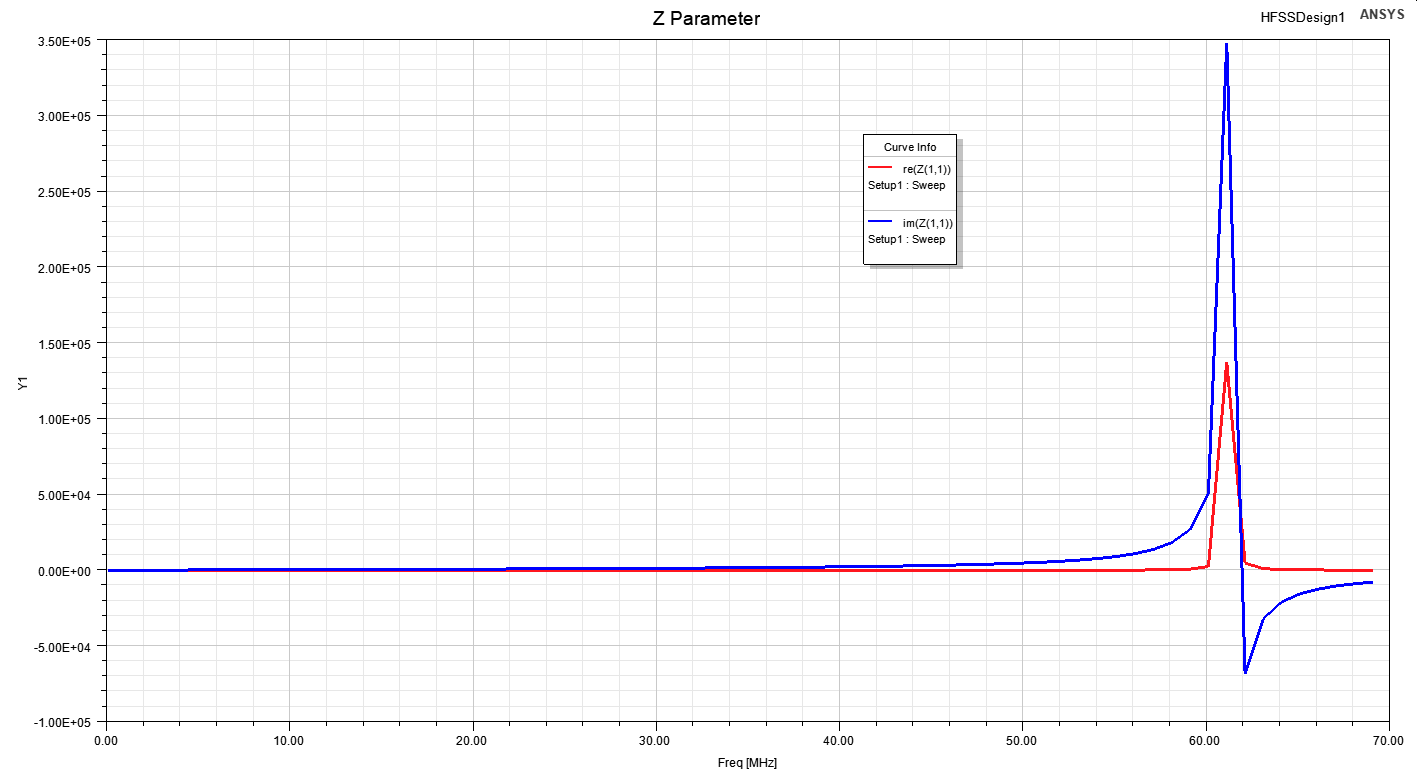
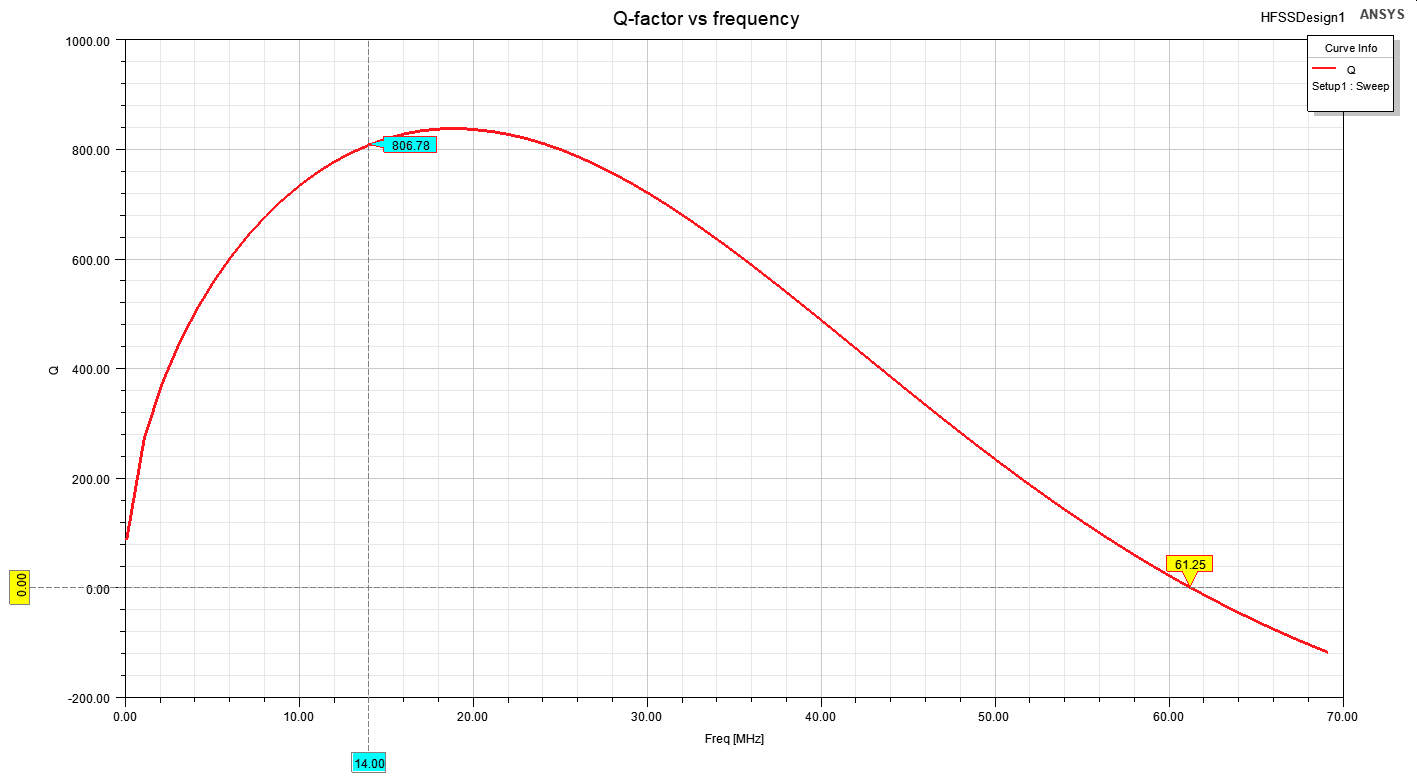
In addition, we add two graphs in the frequency range specified in “Setup1 → Analysis → Sweep”, a graph of Z-parameters and Q-factor. Basically, this is enough, but for complete happiness, you can look at the shape of the magnetic field around the coil, for this we add to the model “Non-model Rectangle” on the plane of which this field will be displayed.
 |
 |
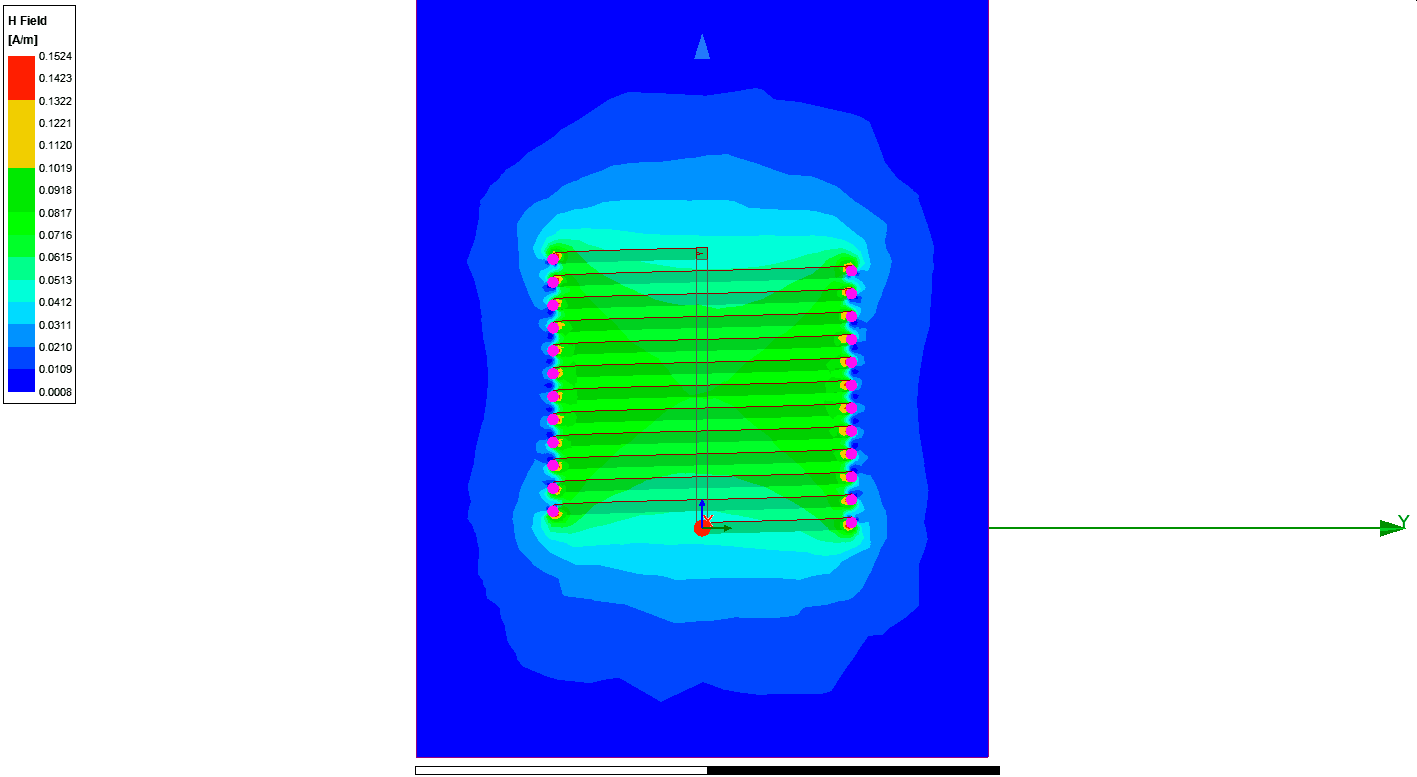 |
| Z-parameters | Change in Q-factor depending on frequency | Magnetic field of the coil |
The Z-parameter graph clearly shows the first self-resonance of the coil. The value of the self-resonance frequency is 61.25 MHz, which differs from the Coil64 result by no more than 2%. The calculated inductance value has approximately the same deviation. The quality factor differs by more than 5%, but it could be more. It is clear from the graph that the Q-factor, as we expected, is close to the maximum. The self-capacitance of the coil cannot be determined knowing its full impedance, moreover, the concept of “self-capacitance of the coil” is quite controversial. Therefore, the change in the coil inductance depending on the frequency can only be calculated without taking into account the self-capacitance, and this issue requires a separate discussion. You can add a former, a shield, a trimmer core to the 3D model and analyze how the coil parameters will change. You can create a model of more complex devices, such as a helical resonator.
Since HFSS calculations take a considerable amount of time, it can only be used as a research tool at frequencies comparable to the self-resonance frequency. Since in practice coils are usually used at frequencies at least an order of magnitude lower, the use of ANSYS Q3D Extractor or Maxwell 3D should be considered more preferable.

These programs give out a Q-factor value greater than the calculation results in Coil64. However, as can be seen from the HFSS modeling results, the losses in the coil increase faster with increasing frequency than the quasi-static field model assumes. In these programs, unlike Coil64, you can, for example, create 3D models and calculate the parameters of multilayer coils on steel rods, on ferrite “dumbbells” and many other inductive elements of interest to radio amateurs. The advantage of Coil64 is that it is free, works faster and allows you to calculate the parameters of inductive elements with an accuracy sufficient for radio amateur practice.
You can download a zip archive containing three VBScripts. ANSYS ELECTRONICS DESKTOP allows you to load and run these scripts via the “Tools → Run Script” menu. By executing the scripts from this archive step by step, you can automatically create, learn, and save the complete project described in this article. The scripts are in text format and include comments. You can also open and read their contents in any text editor, such as Notepad.
Related links::
- Calculation of a ferrite core multilayer coil in MAXWELL 3D
- Simulation of On-chip Spiral Inductor — Lesson 3 ANSYS


Thanks for providing this tutorial. For the life of me I cannot seem to replicate your results within HFSS. Would you be able/willing to share the .aedt file for this tutorial?
Thank you,
Alex
We have placed a link at the end of the article to an archive of three scripts that could allow you to automatically create this project and then save it.